Best screen recording software in 2026: the buyer's shortlist.
Compare eight screen recording software picks for SaaS teams. See pricing, editing, sharing, platform support, and who each tool fits best.
You can spend half a support reply describing where to click, or show the same steps on screen. The recording often becomes useful again in onboarding, a sales follow-up, or an internal handoff.
The buying decision depends on what happens after you press stop. A quick explanation needs a link. A public tutorial needs editing, readable details, and a file you can publish.
This shortlist compares the best screen recording software for SaaS teams in 2026. Loom ranks first for async video messages that people across your company can record and share.
Key Takeaways
Here are the main differences to settle before choosing a recorder.
Loom leads for everyday team communication. Its screen and camera recording, shareable videos, and comments fit updates and quick answers. Starter includes 25 videos with a five-minute screen recording limit, while Business adds unlimited videos and recording time.
A demo recorder should make small details readable. Tella combines recording with layouts, timeline editing, and transcript editing. Screen Studio automatically zooms toward clicks and balances the frame around your camera on Mac.
The payment model can matter more than the entry price. Most paid options charge per user or person. Cap separates a commercial Desktop License, including a $58 one-time option, from its Pro cloud subscription, while OBS Studio is free and open source.
Editing styles suit different work. Descript lets you cut recordings through the transcript. Camtasia gives training authors independent recording layers, cursor effects, and annotations for detailed lessons.
Sharing and publishing are separate decisions. A hosted link is convenient for a bug report or customer reply. An export lets you place the finished video in a course, help article, or campaign using your own publishing workflow.
Sales outreach has its own requirements. Vidyard puts personal video messages alongside viewer and team analytics. Choose around the follow-up your sales team needs, rather than the number of editing controls in the recorder.
What screen recording software actually is (and what it is not)
Screen recording software captures what happens on your display and turns it into a video. Depending on the tool, you can include your camera, microphone, and system audio, or keep the screen on its own. Some record a selected window or area. Others let you arrange several sources before or after recording.
For a SaaS team, the same capture can serve different stages of the customer relationship. A product manager records a release update for colleagues. Support shows a customer how to change a setting. Marketing builds a demo for a landing page, and customer success records the first workflow a new account should complete. Those jobs differ in audience and shelf life, even when they show the same product.
This category does not replace your meeting or webinar software. The focus here is explaining something on screen for someone to watch later. It also does not replace the written steps, navigation, and search around a tutorial. Our knowledge base software shortlist covers that layer when your recordings belong in help docs.
Your budget should reflect who records and who edits. Giving every teammate a recorder is a different purchase from buying an editor for the person who produces your tutorials. If videos support customer acquisition, use the free LTV:CAC analyzer to put that work beside your acquisition costs. Keep the software bill and the time spent producing each video in the same calculation.
How We Ranked These Screen Recording Tools
We ranked these recorders around the work SaaS teams actually share, including async updates, onboarding lessons, bug reports, product demos, and sales outreach. Meeting assistants and webinar platforms sit outside this comparison.
Public vendor product and pricing pages provide the basis for the capabilities and plan details below. The ranking favors a clear fit for a recurring job over the longest feature list.
We compared five criteria:
Recording modes. Screen, camera, combined capture, and separate audio or video tracks. A quick reply and a reusable tutorial need different control over the original recording.
Editing. Trimming, timeline and transcript editing, automatic zoom, layouts, captions, and cursor effects. The useful question is how you correct mistakes and direct attention.
Sharing and export. Hosted links for immediate viewing, review comments, and downloadable videos for publishing elsewhere. These are distinct ways to deliver the finished explanation.
Platform support. Mac and Windows apps, browser recording, extensions, and Linux support where available. Your recording setup must work on the machines your team uses.
Cost and capacity. The pricing unit, billing term, commercial-use rights, recording allowances, and the difference between local editing and cloud sharing.
Published customer outcomes belong to the vendor reporting them. We plan to revisit the shortlist quarterly and after material changes to pricing or platform support.
The Best Screen Recording Software in 2026
Your daily recorder and your tutorial editor can be different tools. The eight picks below cover quick video messages, polished demos, transcript-led editing, training production, sales outreach, and recording with live streaming. Start with the job you repeat most often, then compare what you need to do before the viewer can use the video.
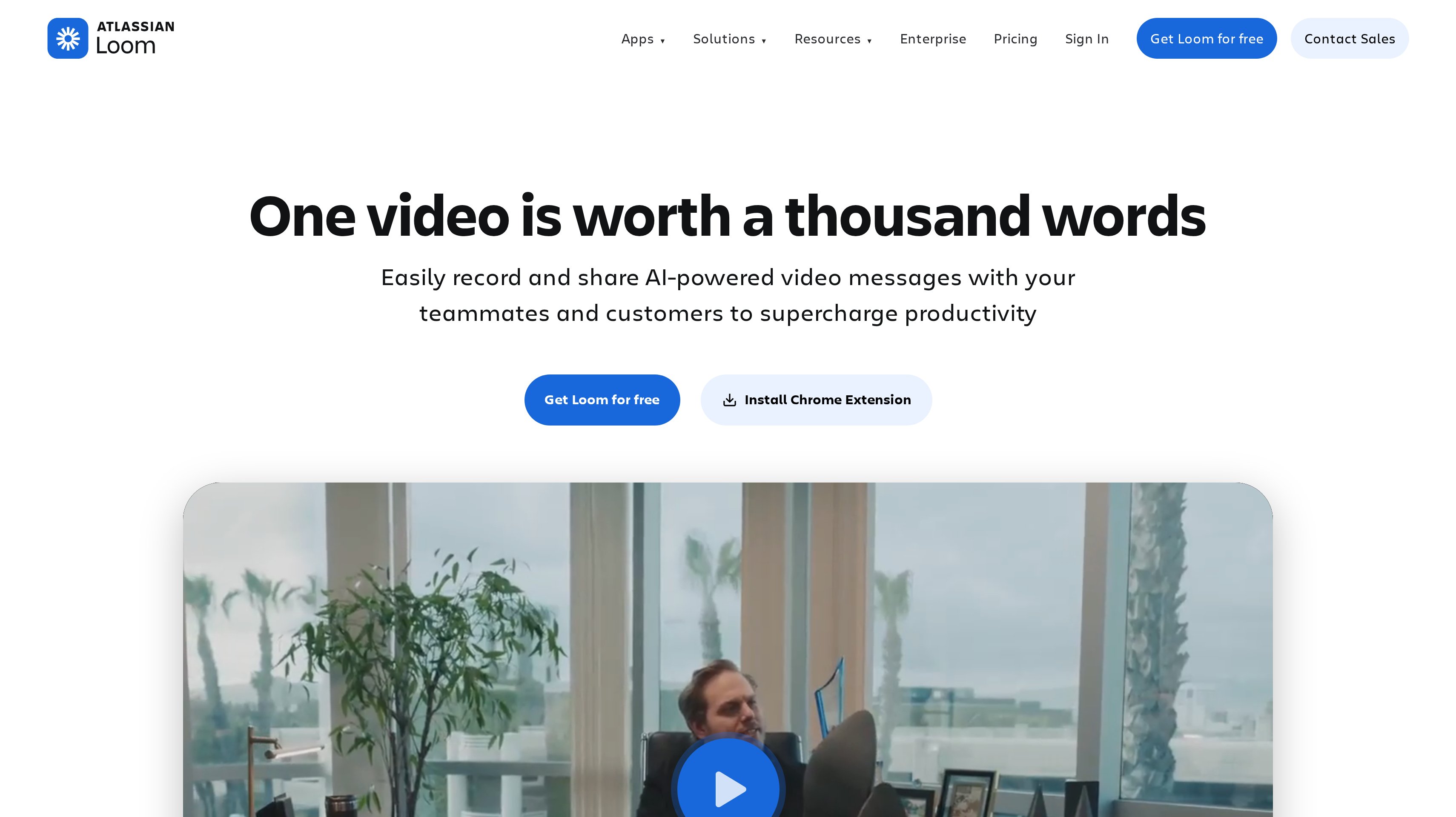
1. Loom, best for async video messages across a whole team
Loom makes recording your screen and camera part of everyday communication. You explain the issue, share the video, and let a teammate or customer watch when they have time. Its Chrome extension, desktop app, and mobile app give people several ways to record. Desktop support includes Mac and Windows, which matters when engineering, support, and sales use different machines.
The editor covers trimming, stitching clips, backgrounds, and text, arrow, and box overlays. You can remove an awkward opening or point out the setting you mean without building a full tutorial project. Comments and reactions keep responses attached to the video, so a walkthrough can become a discussion people return to later.
Starter is $0 and includes 25 videos with five-minute screen recordings. Business starts from $18 per user/month, with unlimited videos, unlimited recording time, basic waveform editing, and removal of Loom branding. Business + AI starts from $24 per user/month and adds automatic video improvements, summaries, and filler word removal. Enterprise is available through sales.
Loom leads this list because the common team task is sending a useful explanation quickly. Try it with a product review, a support answer, and a handoff that someone outside your immediate team needs to understand. The purchase is easier to judge when the people who usually type the explanation do the recording themselves.
Best suited for companies that want teammates across departments to exchange screen walkthroughs and respond around the same video. Product reviews, account handoffs, and customer explanations give that shared recording habit a practical purpose.
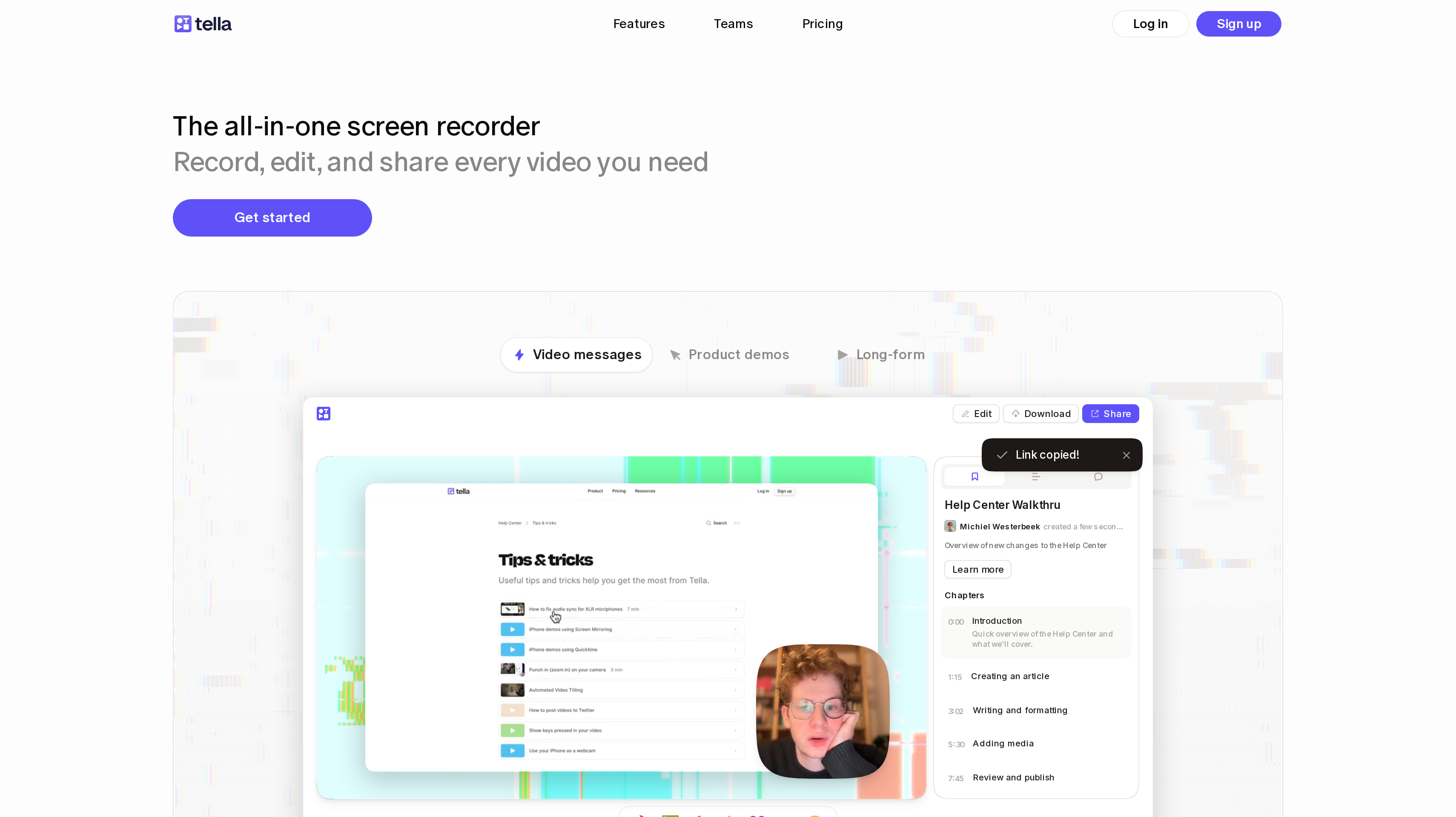
2. Tella, best for polished product demos and tutorials recorded in the browser
Tella combines screen and camera recording with an editor and hosted sharing. You can record in your browser, use its Mac or Windows app, or work through the Chrome extension. The browser route suits a SaaS team producing a walkthrough of its own web app. Screen and camera stay on separate tracks, so you can change the composition after recording.
Layouts, backgrounds, zoom effects, and subtitles help turn that capture into something you can publish. Tella has both timeline and transcript editing, so you can trim a visual sequence or remove a spoken mistake through text. For a tutorial, that means the recording session does not have to produce the final arrangement of camera and product footage.
Pro is $13 per user/month, billed annually. It includes unlimited videos, 3,000 credits per user each month, and 4K export. Premium is $19 per user/month, billed annually, and adds 6,000 monthly credits per user, a custom domain, and domain restriction. Credits pay for the Tella Agent, its chat-based editor, and the allowance is pooled across the workspace. Unused included credits expire at the end of the month.
Sharing includes hosted videos and an embedded player, while export gives you a file for other publishing destinations. You can keep a tutorial available as a link for review, then use the finished version in customer education. Pro and Premium both include unlimited video hosting.
Best suited for founders and product marketers who record browser-based demos and want to adjust presentation before publishing. It also fits customer education teams building tutorials with a mix of presenter footage and product steps.
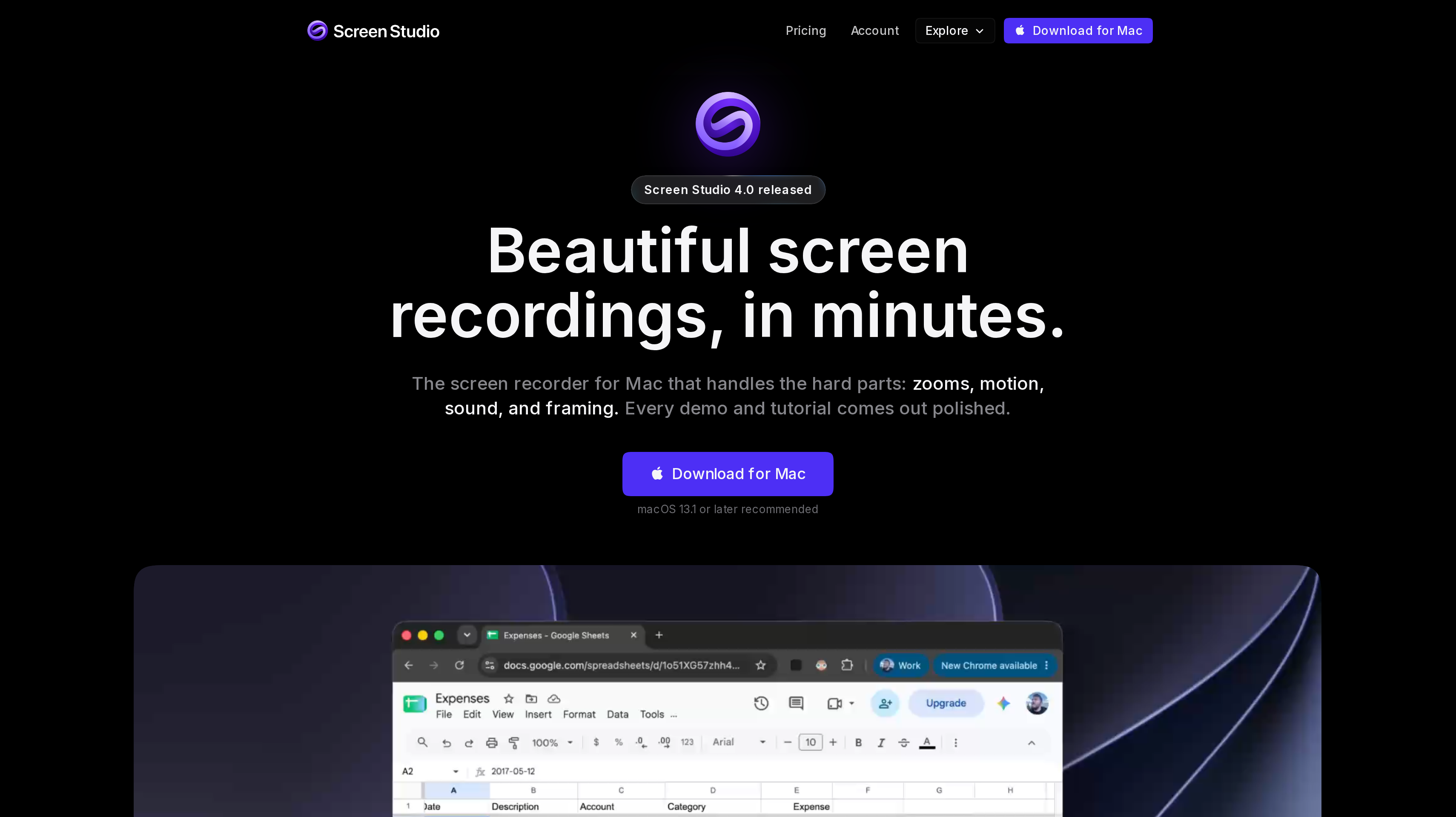
3. Screen Studio, best for Mac product demos with automatic zoom
Screen Studio is a Mac recorder built around the visual work that follows capture. It handles zoom, motion, sound, and framing so a product walkthrough can focus attention on the right detail. Automatic zoom uses actions such as clicks to choose moments worth a closer look. Manual zoom lets you point to a specific area yourself.
The framing also accounts for your camera, balancing zooms so your webcam does not cover the cursor. You can use screen-only footage, a camera overlay, split screen, or a full-screen presenter view. That range helps when a demo needs an introduction, a close look at a control, and a wider view of the result within the same recording.
Yearly is $9/mo, billed yearly, and Monthly is $29/mo on monthly billing. Every feature is included in every plan. Screen Studio supports macOS only.
Finished videos can go out through a shareable link or an export for your website and other apps. The useful evaluation is a product screen with dense controls or small text. Watch how the zoom follows your clicks, then judge whether the viewer can read the detail without losing where they are in the wider workflow.
Best suited for Mac-based product teams and founders making demos where readable interface details and camera placement matter. Automatic motion and framing support frequent feature announcements without requiring you to animate each close-up yourself.
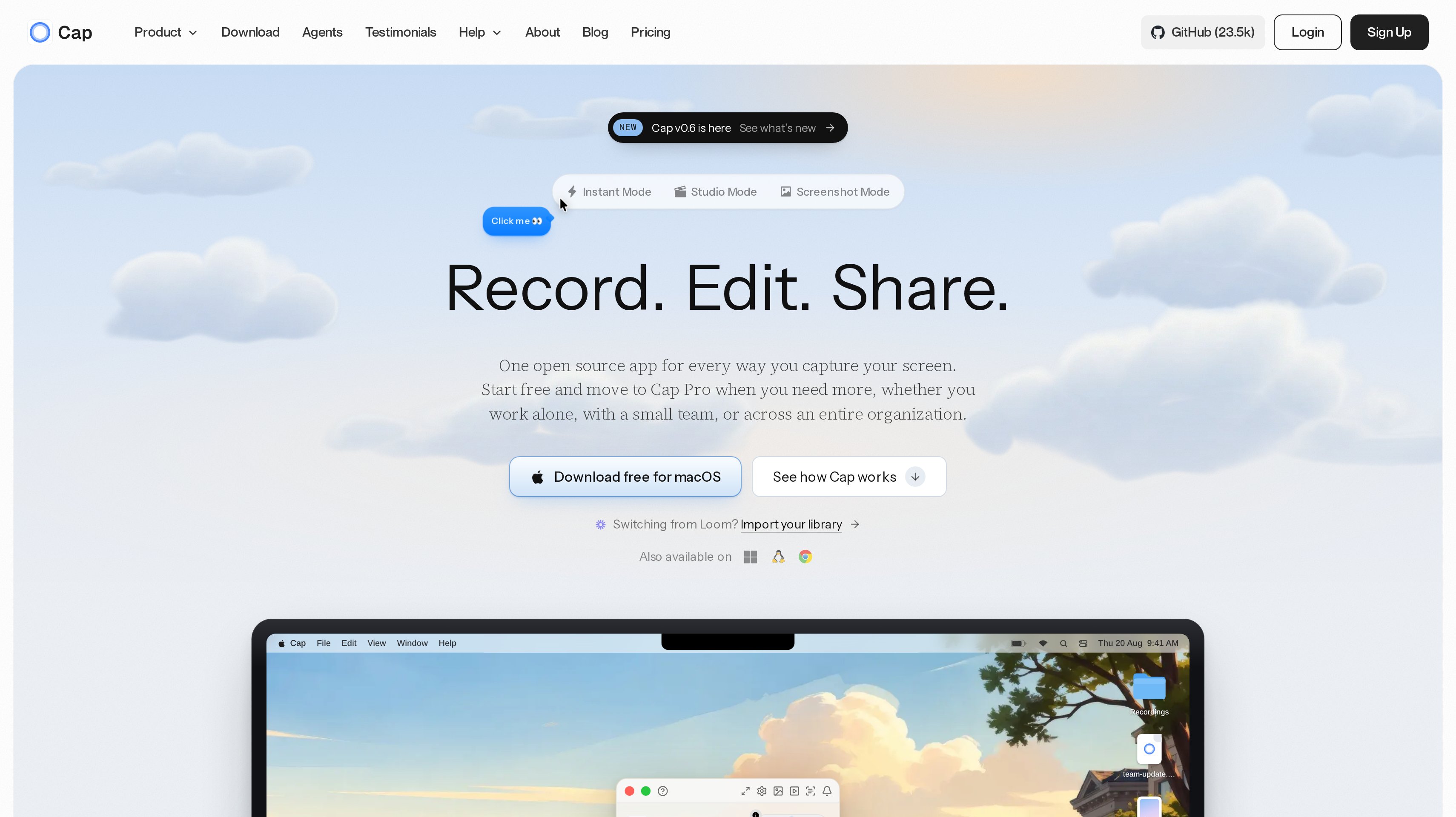
4. Cap, best for an open source Loom alternative with a one-time license
Cap separates quick sharing from more deliberate production through Instant and Studio modes. Instant uploads while you record and puts the share link on your clipboard when you stop. Viewers watch in the browser without an account. Studio records locally in 4K, with separate tracks for the screen, camera, and microphone, then opens the editor.
That editor includes backgrounds, automatic zoom, cursor effects, and captions. You can export in 4K or share the result as a Cap link. Screenshot mode handles still captures of a window or area, with background, padding, and shadow controls. Mac and Windows support make Cap relevant to teams comparing desktop options for both quick bug reports and prepared walkthroughs.
Free covers personal use with no time limit on local recordings. The commercial Desktop License costs $29 per year, or $58 once for a license that never renews. One user gets unlimited local recording and editing, offline operation, and 20 cloud-shareable links per month, up to five minutes each.
Cap Pro is $12 per user/month on monthly billing, or $8.16 a month, billed annually. It adds unlimited cloud sharing, storage and bandwidth, AI titles, summaries, chapters, transcriptions, and team collaboration. Cap also offers Loom library import, so you can bring existing recordings into your shared video library.
Best suited for teams that want open source recording and a choice between a commercial desktop license and ongoing cloud sharing. Individual tutorial makers can use the local editor, while collaborators can organize their work around Cap links and Pro.
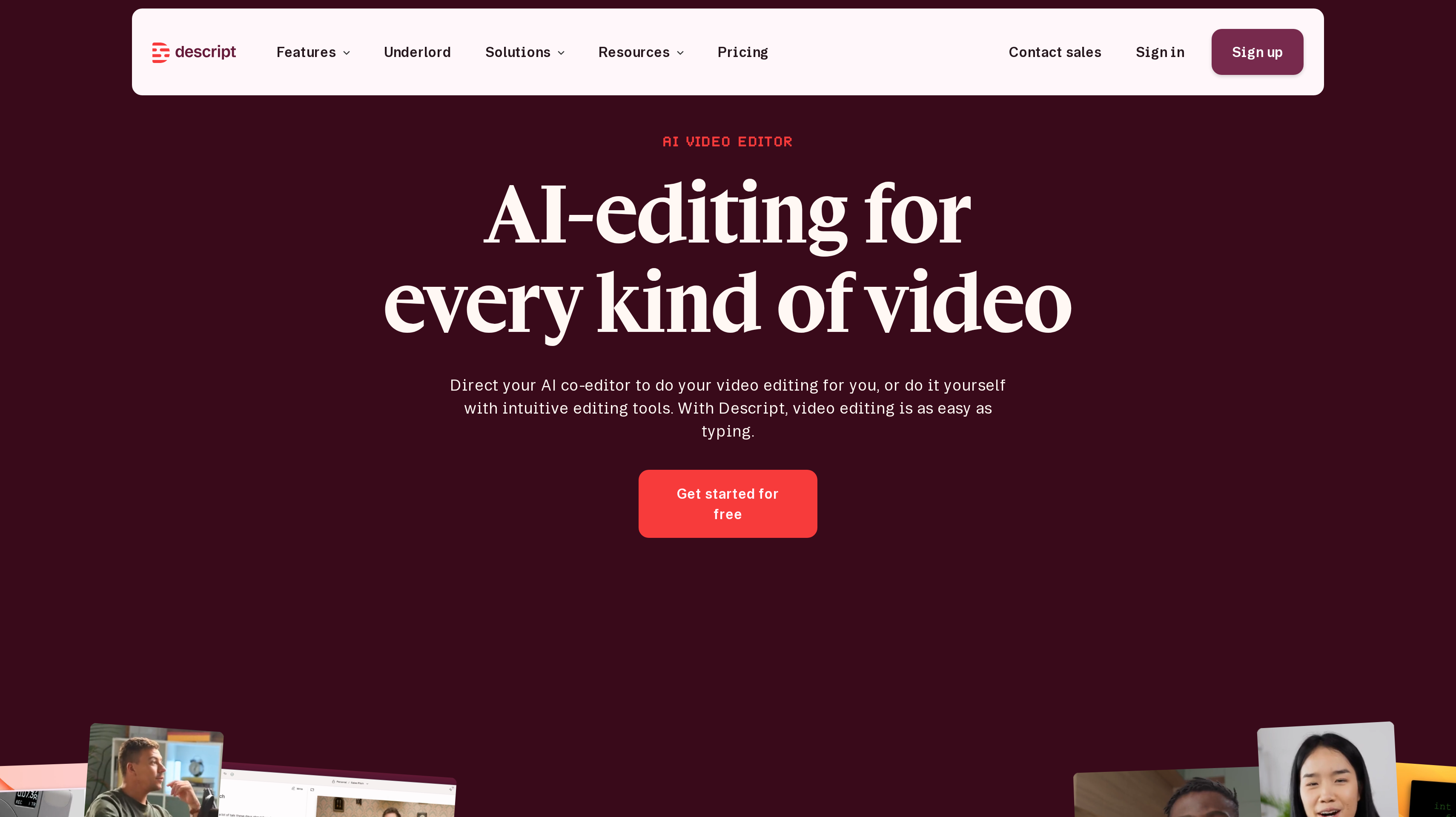
5. Descript, best for editing recordings through the transcript
Descript treats the spoken explanation as something you can edit like a document. It transcribes your footage, and changes to the words change the video. You can cut retakes and filler words without searching through the entire recording on a timeline. The timeline remains available when a visual edit needs more precise control.
For a SaaS tutorial, this fits a recording where the explanation needs work after the clicks are already right. Descript also offers audio cleanup, eye-contact correction, lighting fixes, captions, and an AI co-editor called Underlord. You can send a link for comments or export the video for publication. Its desktop app runs on Mac and Windows.
Free is $0. Hobbyist is $16 per person/month billed annually, or $24 on monthly billing, with 10 media hours and 400 AI credits each month, plus watermark-free 1080p export. Creator is $24 per person/month billed annually, or $35 monthly, and includes 30 media hours, 800 monthly AI credits, and watermark-free 4K export. Those allowances matter when you bring long recordings into the editor.
Business is $50 per person/month billed annually, or $65 monthly. It includes 40 media hours, 1,500 monthly AI credits, team-wide Brand Studio, and translation and dubbing in more than 30 languages. Match the plan to the material you process and the editing you do, rather than only the running time of your finished tutorials. A short lesson can begin as a much longer take.
Best suited for teams whose screen recordings contain explanations that need substantial wording, pacing, or audio edits. Content editors can work through the transcript and use the timeline for the visual changes that remain.
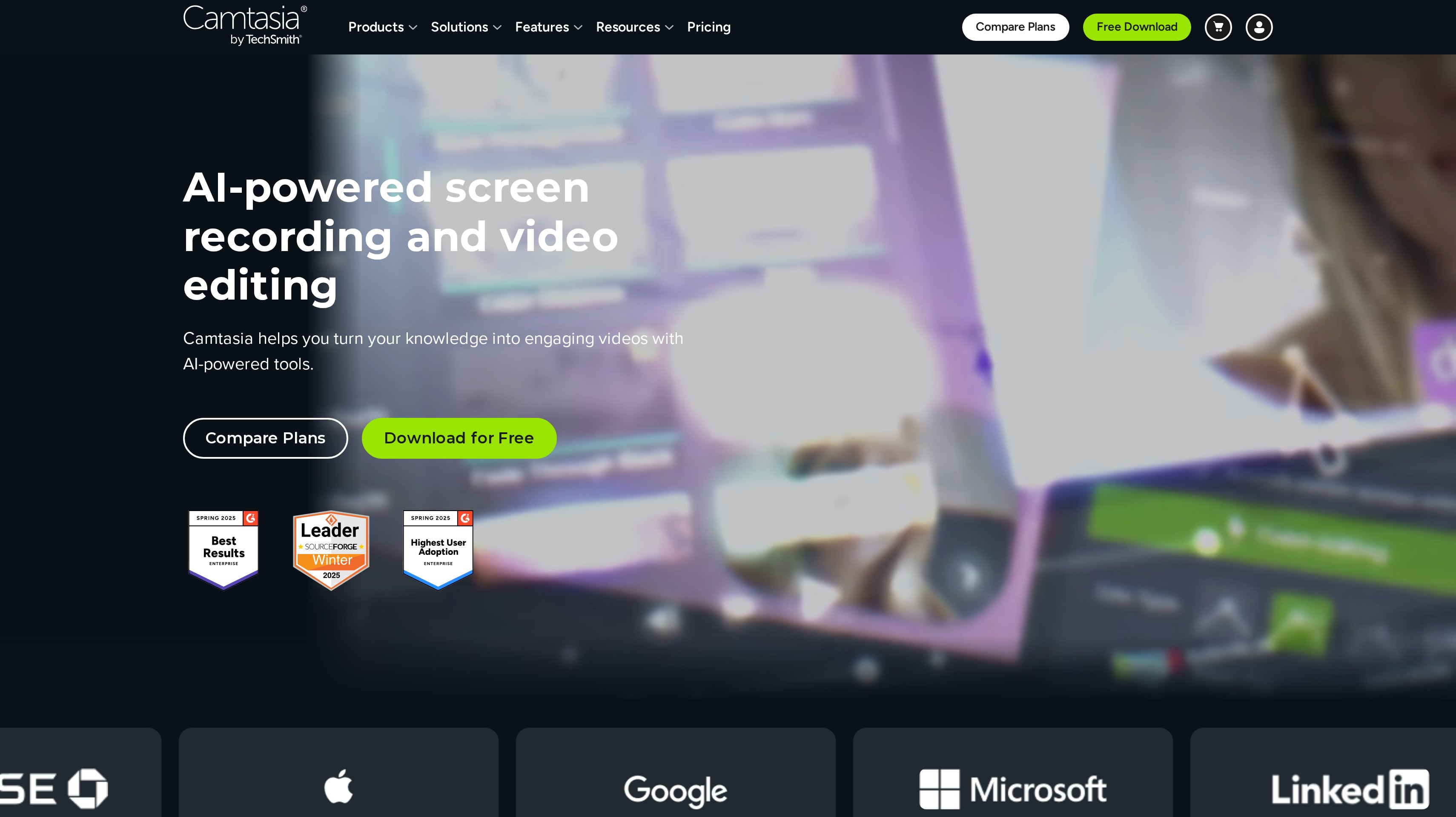
6. Camtasia, best for training and tutorial videos with deep editing
Camtasia gives training authors control over what happens after a screen recording ends. Screen, camera, system audio, and microphone capture remain independent layers. You can adjust them during editing, rather than treating the entire recording as a single finished picture. The desktop editor runs on Mac and Windows.
Drag-and-drop editing handles zooms and callouts, while cursor effects and annotations make individual steps easier to follow. Themes and templates help keep a series of lessons consistent. Text-based editing through Camtasia Audiate adds another way to remove spoken mistakes. These capabilities fit training content that has to explain a process clearly across several videos.
The individual Starter plan is $39.00 per year, billed yearly, for advanced screen capture. Essentials is $179.88 per year, billed yearly, and adds video and audio editing, editable multitrack recording, speech-to-text transcription, automatic filler word removal, and unlimited caption generation. For the deep editing workflow described here, Essentials is the more relevant starting point than the lowest-priced capture plan.
Create is $249.00 per year, billed yearly, and Pro is $599.00 per year, billed yearly. Pro adds video title, chapter, and description generation, premium stock assets, and unlimited video sharing. The suite also includes browser-based Camtasia Online access with simple editing and collaboration, plus private hosting on Screencast with timestamped feedback. Decide which authoring and sharing pieces your training process needs before choosing the suite level.
Best suited for customer education and learning teams producing structured lessons with annotations, cursor guidance, and reusable visual themes. Independent recording layers give authors room to revise how a process appears and sounds after the initial take.
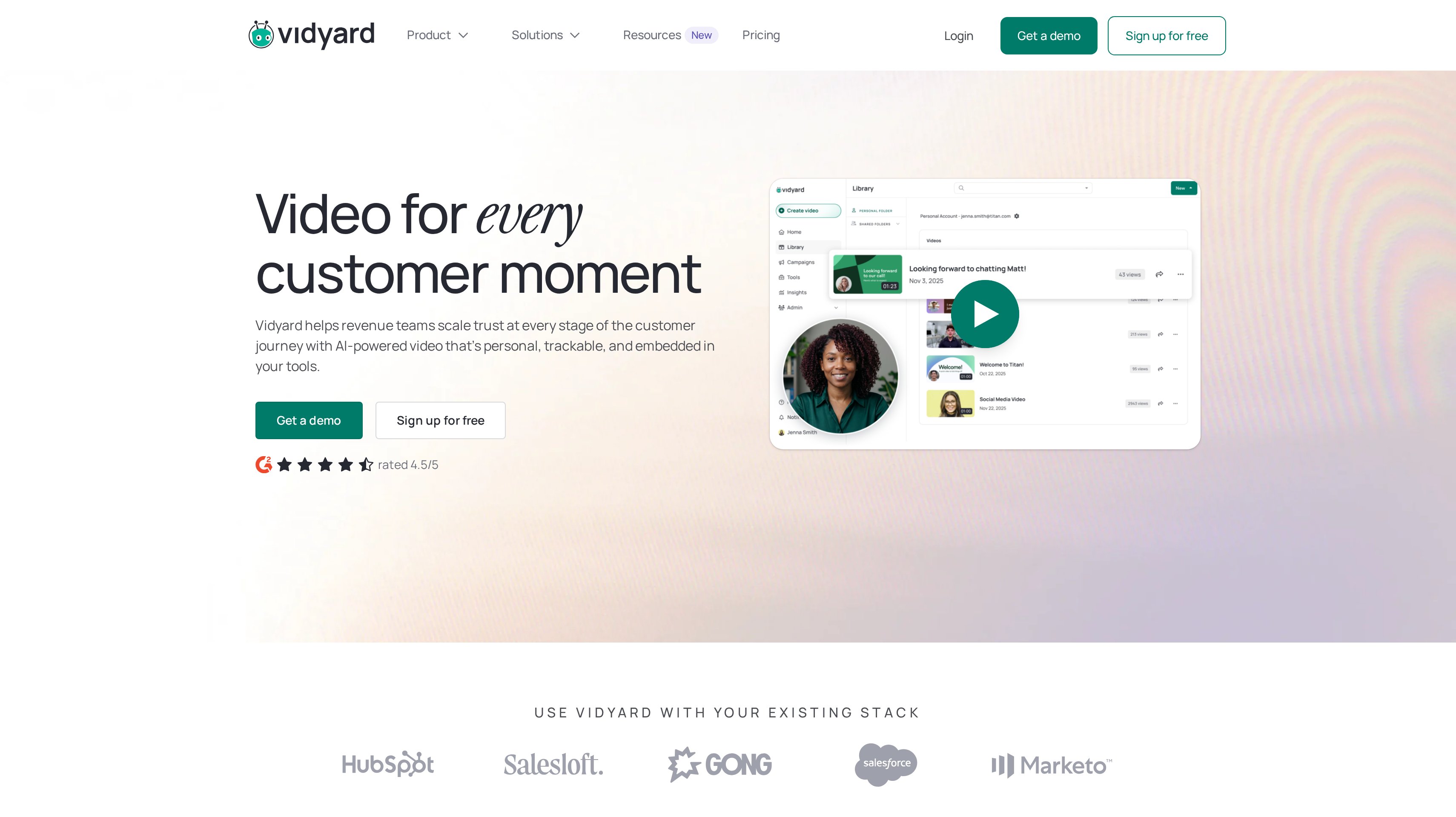
7. Vidyard, best for personalized video outreach from sales teams
Vidyard puts screen recording inside a sales communication workflow. A rep can record a personal explanation, send it to a buyer, and use video analytics to guide follow-up. The product also covers hosted business videos, branded pages, and AI-generated personal videos. That makes the buying question about how sales uses the message after sending it.
Browser recording is part of the workflow, alongside editing and sharing options. For SaaS outreach, a useful recording might show the exact product screen relevant to the prospect's question. The same approach works after a deal closes, when an account needs a personal explanation of its next step. Keep the recording focused on the buyer's task rather than turning every follow-up into a general product tour.
Free is $0 USD and includes five recorded videos per month, video editing and sharing tools, and 15 AI videos. Starter is $59 USD per seat/month billed annually and includes unlimited video recording, full video analytics, and team performance analytics. The free plan gives a rep room to try personal messages; Starter changes both recording capacity and the reporting available to the team.
The Video Agent add-on is $24 USD per seat/month billed annually, with unlimited AI videos and automated video creation and delivery. That is separate from recording a screen walkthrough yourself. Vidyard lists connections with Salesloft, Salesforce, HubSpot, Marketo, and Zapier for those automated workflows. Evaluate manual outreach and automated video as separate needs so the plan follows the way your reps actually work.
Best suited for revenue teams that send personal product explanations during prospecting, deal follow-up, and customer handoffs. Viewer and team reporting give sales managers a reason to choose around the outreach workflow alongside the recording experience.
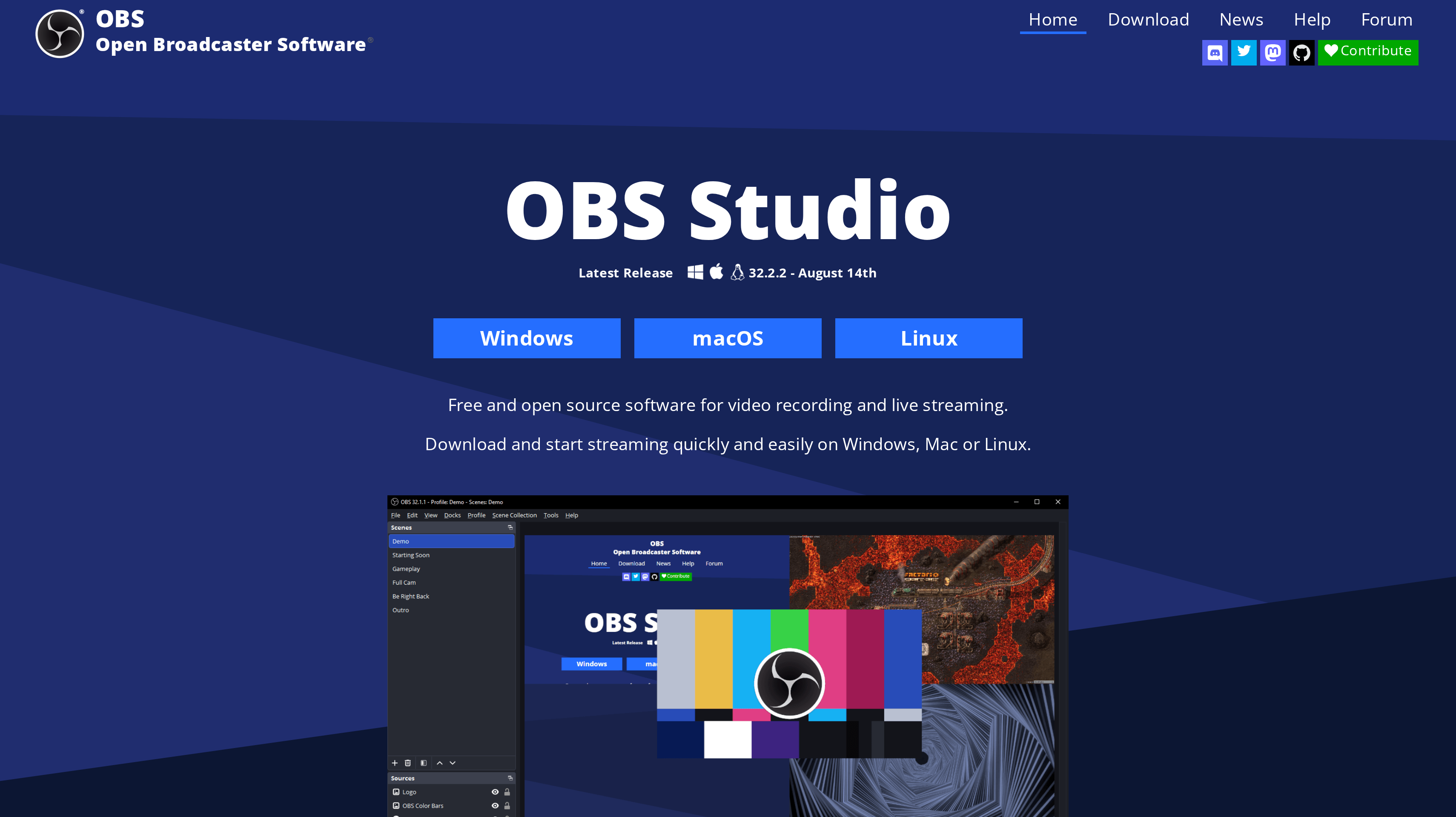
8. OBS Studio, best for free, open source recording and live streaming
OBS Studio is free and open source software for recording video and streaming live. It runs on Windows, macOS, and Linux. You build a scene using sources such as window captures, browser windows, images, text, webcams, and capture cards. That gives you control over what the viewer sees while the recording is happening.
Scenes can be prepared in advance and switched with transitions. A SaaS demo might use one scene for a product window and presenter, then another for a wider explanation. Recording and streaming share that production setup. This is a useful distinction when the same person makes recorded walkthroughs and presents the product live.
The audio mixer has per-source filters for noise gate, noise suppression, and gain, with VST plugin support. You can manage sources independently and arrange the dock-based interface around the controls you use. For a technical team, that control makes OBS a practical way to establish a repeatable capture setup instead of rebuilding the composition each time.
OBS Studio has no subscription or license fee. OBS is the capture and mixing part of your workflow, so plan the delivery of the finished recording too. If you need a cut-down tutorial, an editable transcript, or a page where a customer can watch and comment, evaluate that editing and sharing step separately. The useful comparison is the complete route to the viewer, including the setup work you do before pressing record.
Best suited for technical creators and developer education teams that want to compose their recordings from several video and audio sources. It also fits teams producing both recorded demos and live presentations from a consistent scene setup.
Side-by-Side Comparison
The table compares price, best use case, editing, and platform support.
Tool
Price
Best for
Editing
Platforms
Loom
From $18/user/mo
Team updates
Trim, stitch
Mac, Windows
Tella
$13/user/mo
Browser demos
Timeline, text
Browser
Screen Studio
$9/mo
Mac demos
Auto zoom
Mac
Cap
$58 once
Open source
Zoom, captions
Mac, Windows
Descript
$16/person/mo
Spoken edits
Transcript
Mac, Windows
Camtasia
$179.88/yr
Training
Multitrack
Mac, Windows
Vidyard
$59/seat/mo
Sales outreach
Basic edits
Browser
OBS Studio
Free
Live video
Live mixing
Mac, Windows, Linux
Which screen recording software fits your use case
A recorder that suits a daily support answer can be different from the one you use for a course. Start by deciding whether the viewer needs an immediate explanation or a video your team will maintain and publish.
Then try the whole delivery process with a real task. Record the clicks, correct a mistake, and watch the result at the size your customer will see. Dense interface text often reveals more about the fit than a full-screen playback on the creator's monitor.
Use case
What changes about the setup
What to look for
Async updates and bug reports
The person reporting the issue needs to send context immediately.
Quick capture and links. Loom and Cap Instant fit frequent explanations.
Public product demos
Small controls need to stay legible and the presentation needs editing.
Zoom, layouts, export. Tella fits browser production; Screen Studio fits Mac demos.
Help center and onboarding videos
A lesson needs clear narration and a destination beside written instructions.
Transcript editing, captions, embeds. Tella and Descript support prepared explanations.
Detailed training courses
Authors revise individual steps and keep lessons visually consistent.
The recording supports a specific buyer conversation and follow-up.
Personal videos and viewer reporting. Vidyard fits revenue-team workflows.
Live demos and technical presentations
Several sources need a prepared arrangement during capture.
Scene switching and audio mixing. OBS Studio fits recording and live production.
For a company-wide rollout, include someone who records only occasionally in the trial. For an editing purchase, ask the person maintaining the tutorials to finish an actual lesson. Those are different tests, and both matter if you expect one subscription to cover the whole team.
Proof: What results look like
Vidyard publishes a customer testimonial reporting an 8x improvement in click-through rates and a 4x improvement in reply rates from personalized video messages. Descript publishes feedback from a LinkedIn content producer describing time saved by replacing timeline scrubbing with transcript-led work and batch social cuts. Those accounts describe particular outreach and editing workflows, rather than a promised return for every recording.
Adoption provides another signal. Loom reports more than 25 million people across 400,000 companies, while Descript reports more than 6 million creators and teams. Those totals show usage, not how much time your own support or marketing team will save.
For the growth channel beside your video stack, the customer testimonials give you a separate basis for evaluating partner programs. Use the affiliate commission calculator to model a reward for creators who explain and recommend your product. Keep those acquisition economics separate from the benefits of recording a clearer tutorial.
FAQ
What is the best screen recording software for SaaS teams?
Loom takes first place here for async messages across a company, with screen and camera capture, sharing, and responses around the video. Tella fits prepared browser-based tutorials, while Screen Studio suits polished Mac demos. Choose by the recording you need most often and the amount of editing it requires.
What should the best screen recording software include for tutorials?
Look for readable screen capture, control over camera placement, and an editing method your author can use comfortably. Tella offers timeline and transcript editing, Descript centers editing on words, and Camtasia supports detailed work with recording layers and annotations. Include export or embedded playback in your evaluation so the lesson reaches its intended destination.
What is the best screen recorder for Mac?
Screen Studio is the Mac-specific pick for automatic zoom and framing in product demos. Cap, Loom, and Camtasia also run on Mac, covering local editing, async messages, and detailed training respectively. Record a screen with small interface text and compare the finished result before choosing your best screen recorder.
Which Loom alternatives suit polished demos or open source recording?
Tella suits browser-recorded demos that need layouts and editing before publication. Cap is the open source option with Instant sharing, Studio editing, and a commercial Desktop License available for $58 once. Screen Studio is another option for Mac creators who want automatic zoom and camera framing during demo production.
Can I get free screen recording software for commercial work?
OBS Studio is free and open source for recording and live streaming across Windows, Mac, and Linux. Cap's free plan is for personal use, while its paid Desktop License adds commercial usage rights. That license includes unlimited local recording and editing, plus 20 cloud-shareable links each month.
How should I compare per-user subscriptions and a one-time license?
Count the people who need to record or edit, then separate local production from cloud storage and sharing. Cap's $58 one-time Desktop License covers one user and includes 20 cloud-shareable links per month, up to five minutes each. Its Pro subscription adds unlimited cloud sharing and team collaboration.
Should I share a video link or export a file?
A link suits a fast answer, a review request, or an explanation you send directly to a customer. Export is useful when the finished video belongs in another publishing system or campaign. Tella, Screen Studio, and Cap offer both routes, so test delivery alongside capture and editing.
How can product tutorials support an affiliate and partner program?
Creators can use a clear walkthrough to explain your product to people who need it. Pair those educational assets with affiliate software for SaaS to handle referral attribution, commissions, and payouts. The affiliate software comparison covers that purchase separately from the recording tools in this guide.
Try for free
Choose a recurring explanation your team already gives. Record it with the tool that matches the audience and the editing work. Send the result to someone who has never completed that task. Use their questions to improve the next version. When customers and creators want to teach your product to others, give them a clear way to participate in your affiliate and partner programs. Start your Affonso free trial to connect those recommendations with referrals, commissions, and payouts.
 Affonso
 Silvestro Zinnanti, FounderComparisonNovember 24, 202622 min read